Dashboard & Monitoring
The dashboard provides comprehensive trading monitoring and system status viewing capabilities. This section will introduce how to use various monitoring interfaces.
Dashboard Interface
Return to the Dashboard interface to see all AI Traders executing trades according to strategies in real-time.

Completed Trades
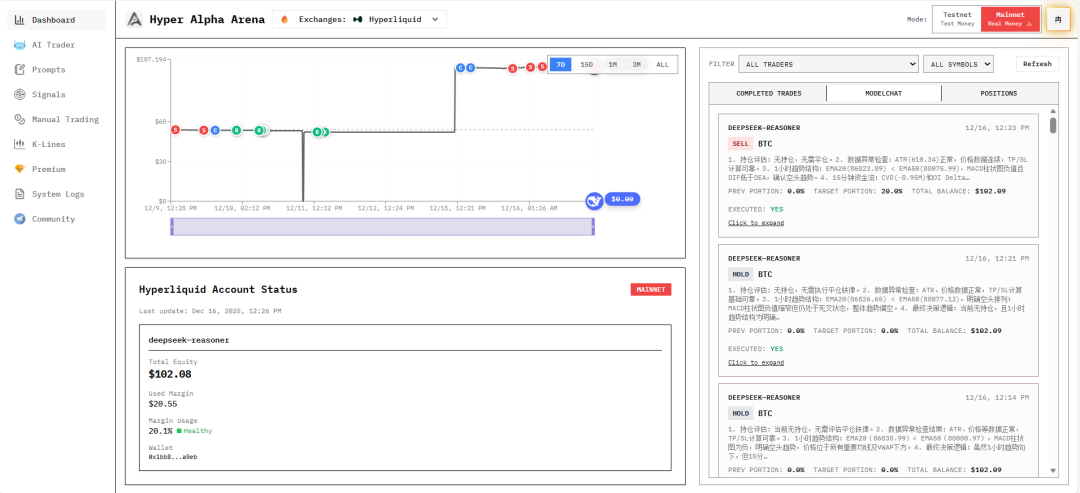
On the right side, you can view the last 100 trade records, with each trade showing:
- Specific price
- Trade quantity
- Trade value
- Commission information
ModelChat (Model Decision Window)
The ModelChat panel serves as a "trading decision transparency window", displaying in real-time:
- AI Trader's operations for specific coins (buy, sell, hold, or close)
- Model's reasoning logic
- Strategy templates and parameters
- Detailed explanation of the decision-making process
This enables you to:
- Understand AI's decision-making process
- Track strategy execution
- Verify automated trading logic
Positions
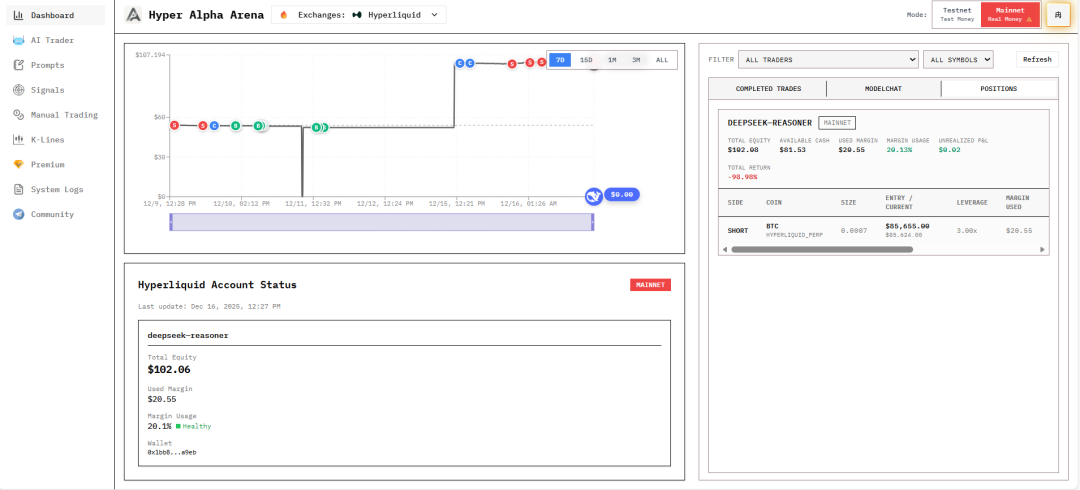
The Positions panel displays the cryptocurrency positions currently held by each AI trader, including:
- Long/short direction
- Leverage multiplier used
- Notional value of position
- Current market value
- Floating profit and loss
System Logs Interface
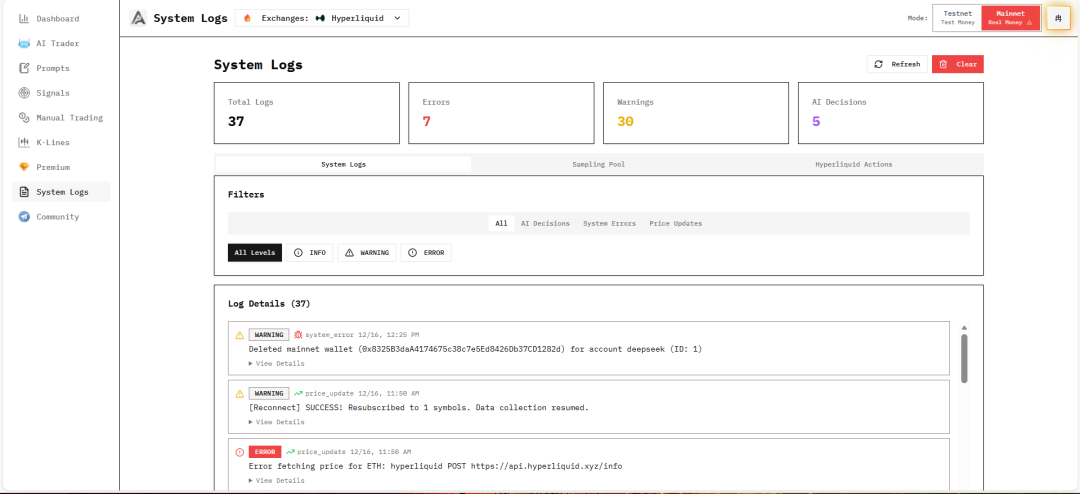
The System Logs interface allows real-time viewing of the AI trading system's operational status.
Main Functions
1. Track AI Decision Process
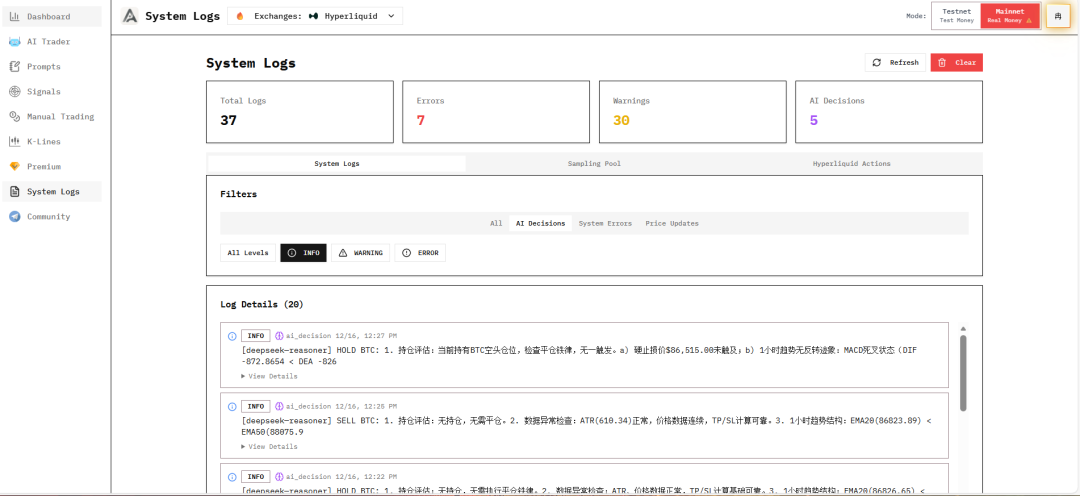
View AI's complete decision chain to understand the basis for each trading decision.
2. Discover and Diagnose System Errors
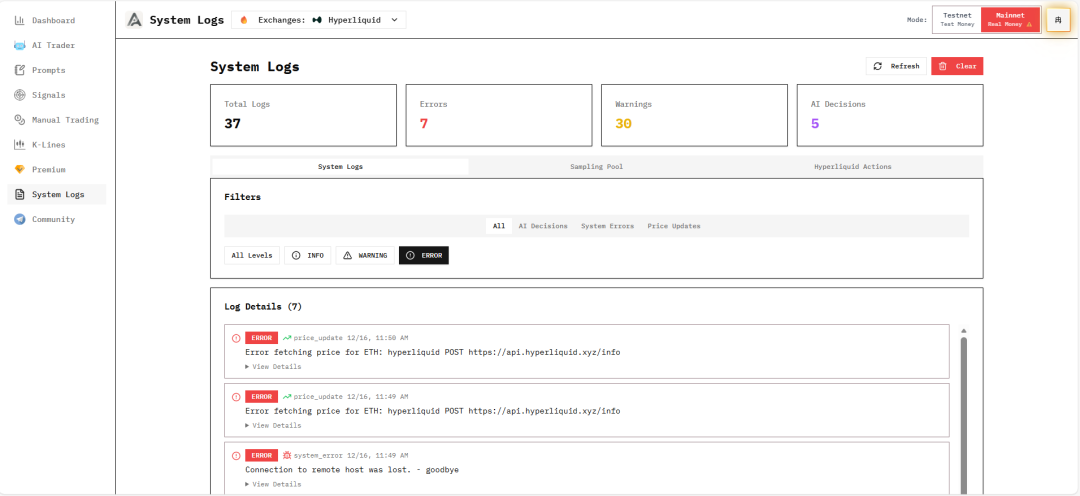
If you encounter a BUG, you can find error information here. Please attach error information when reporting BUGs to us.
3. View Coin Price Changes
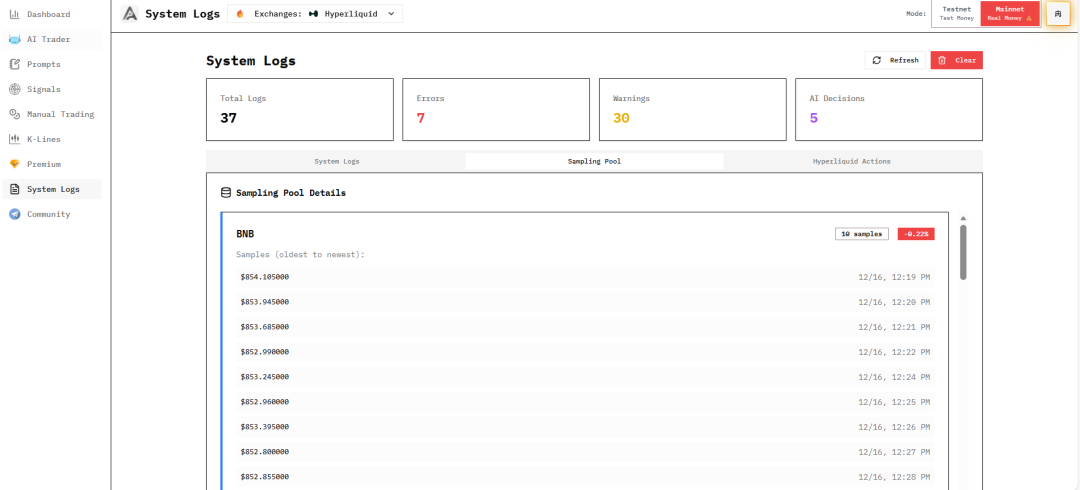
Monitor real-time price changes of selected coins.
4. Filtering Function
You can quickly locate specific types of logs through the filtering function, improving problem troubleshooting efficiency.
Manual Trading Interface
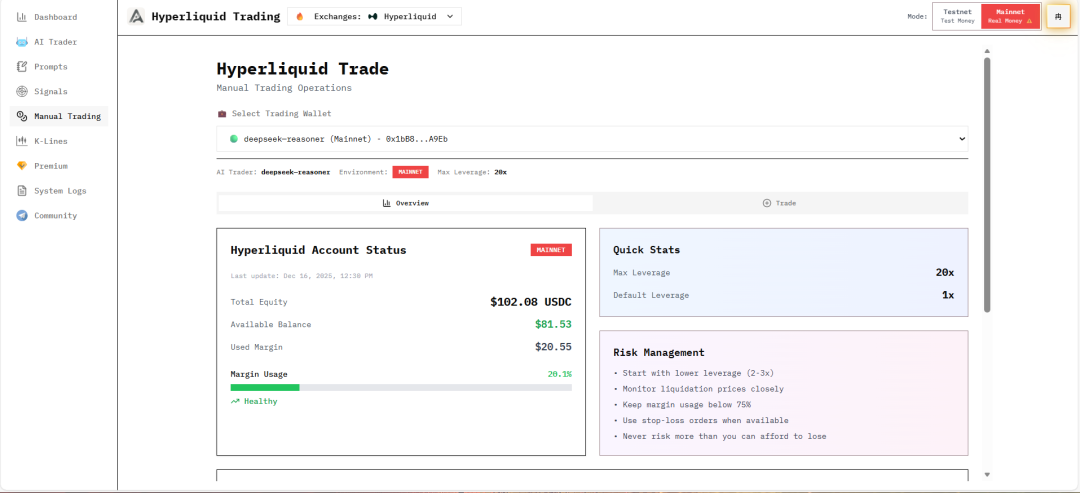
In the Manual Trading interface, you can:
- View account status
- View position status
- Manually close positions
API Usage Limits
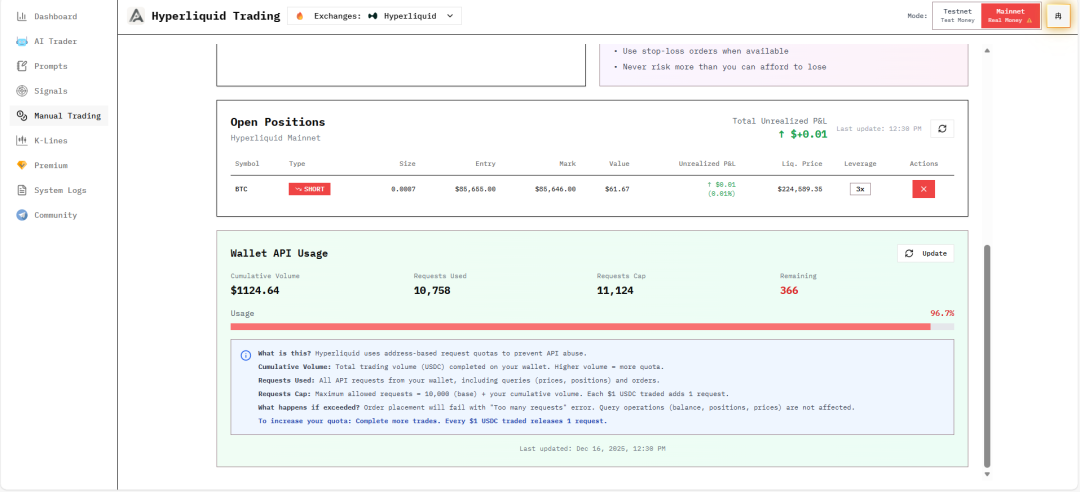
Important Note
Pay attention to API Usage. Hyperliquid has rate limits that can be increased by trading more volume. Binance also has API rate limits based on your account level. If you reach the limit, you can switch to another wallet/account to continue running.
Trade Page
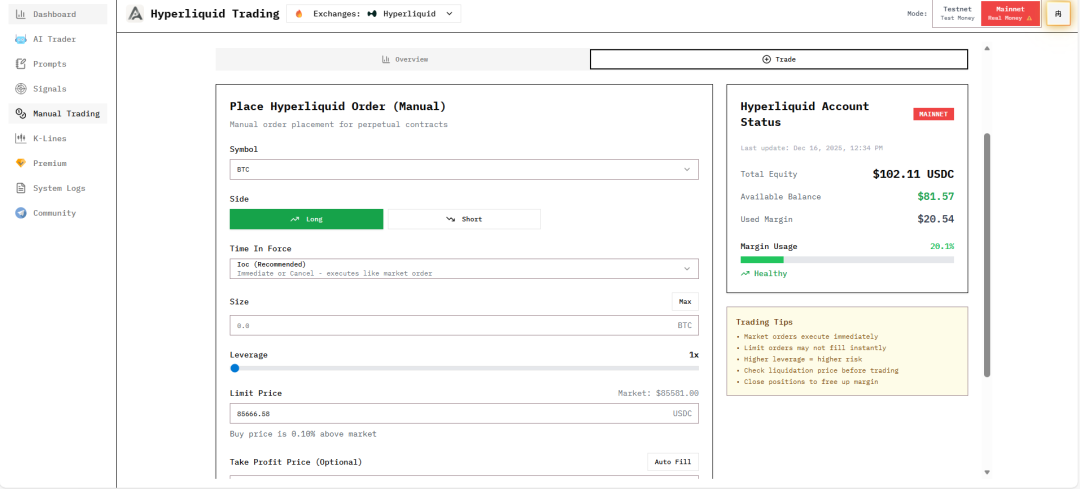
On the Trade page, you can place manual orders, suitable for:
- Emergency situations requiring manual intervention
- Testing trading functionality
- Supplementing AI strategy shortcomings
Monitoring Best Practices
1. Regular Checks
It's recommended to check at least once daily:
- Dashboard position status
- Error information in System Logs
- API Usage status
2. Focus on Anomalies
Pay special attention to:
- Consecutive failed trades
- Abnormal profit and loss fluctuations
- System error logs
- API quota warnings
3. Timely Adjustments
Based on monitoring results:
- Adjust strategy parameters
- Optimize trigger conditions
- Modify risk control settings
- Replace underperforming AI Traders
4. Record and Analyze
Regularly:
- Export trade records
- Analyze strategy performance
- Summarize lessons learned
- Optimize trading strategies
Next Steps
After completing monitoring configuration, check:
- FAQ - Common problem solving
- AI Traders - Optimize AI Trader configuration